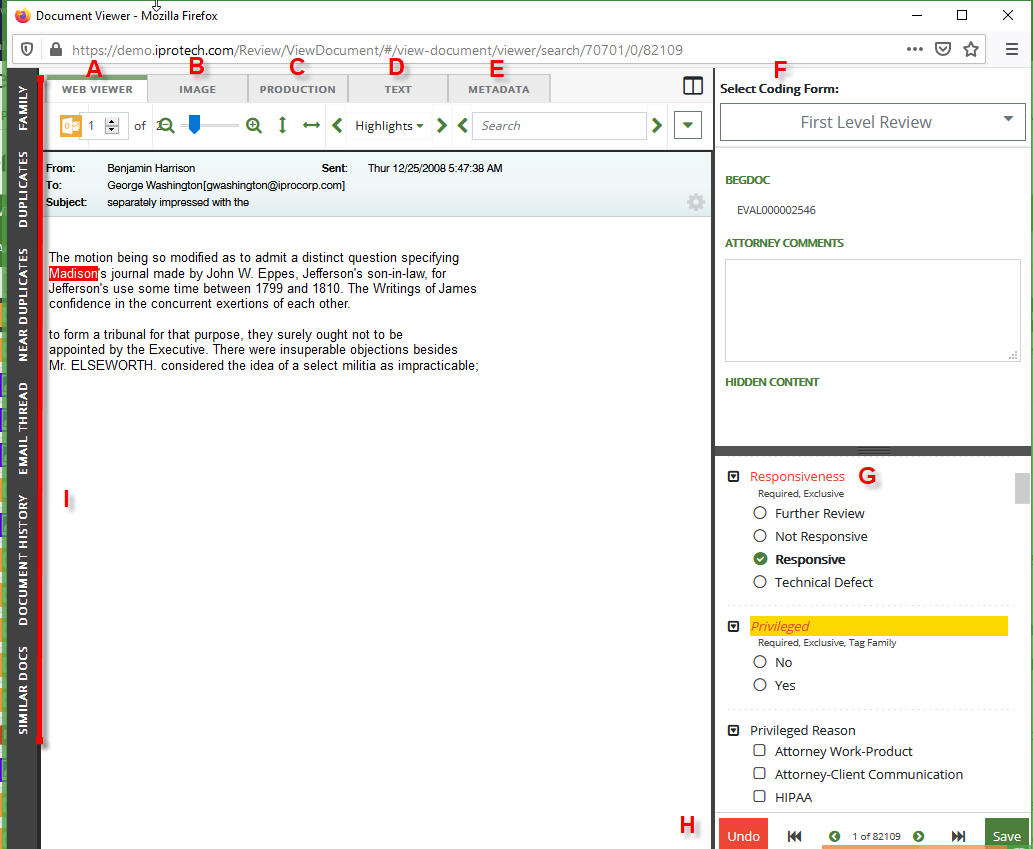
This lesson describes the software interface used when it was written.
This post is mostly for those that have worked in the predecessor to Ipro for Enterprise (IFE), Eclipse Web (EW). The document viewer was automatically viewable in EW, when starting to review documents. With IFE, you'll need to click the hyperlinked (i.e., underlined) BegDoc value in the Results tab to have the Document Viewer open, to be able to view the different views of a document.
Here's a quick legend:
A) Web Viewer: This is what you might otherwise call the 'near native view' of a document. It's the view that allows to you view a document almost as if you had opened it up in the program associated with the file extension of the document. It's a time saver for sure.
B) Image: This is the view of a document that is the image version of anything you might see in the Web Viewer. The equivalent is that you see when you print a document to 'pdf'. Even if the document is already an image file type (i.e., .pdf, .jpg, etc), you will only be able to view that file using the Web Viewer, unless you have expressly imaged the file.
The Image view is an important view, for review purposes. You need the image view to allow you to redact or highlight a document. You will also need an image version of document(s) to produce with a Bates number.
C) Production: This tab allows you to see the version(s) of a document that was produced within IFE.
D) Text: The searchable or extracted text of a document. This is also one of the key views we view to see search results highlighted, if not viewable on the Web Version.
E) Metadata: This tab will allow you to see all the metadata fields, viewed from top to bottom (as opposed to left to right, in the Results tab).
F) Select Coding Form: This section allows us to select an appropriate coding form. Coding forms are a tool to quickly allow us to charge what fields and what tags are available and are usually set up for us for a given set of tasks for review, like 'first pass review', 'privilege review', etc.
G) (Tag Area): While not labeled, this area is where tags are available to select when reviewing documents, document-by-document. The tags available here are tied to whichever coding form you've selected. Please also be aware there is no longer right-click functionality with tags. Right-click functions found in EW are now found elsewhere.
H) (Navigation): One of the things you will notice between EW and IFE is that you know longer have to get into Edit mode to tag or conduct data entry. You now also have a dedicated area to select going to the next document and also saving your work.
I) (Bulk View Area): The far left section of the Document Viewer is now dedicated to displaying the bulk viewing area for things like document families, email threads. This area is also pinnable, once activated, so you have quick and easy access to viewing collections of documents for any of the concepts viewable/available.