This lesson describes the software interface used when it was written.
The Filter feature in Ipro for Enterprise (IFE) is a super quick method to find very specific information with minimal effort. It is a shorthand method of working in the Advanced Search section, where it allows you to find specific names or keywords in key metadata fields.
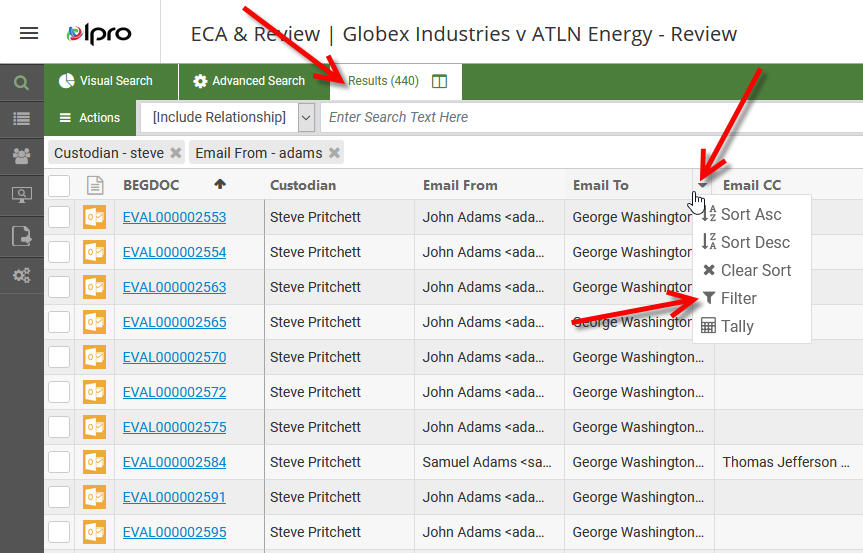
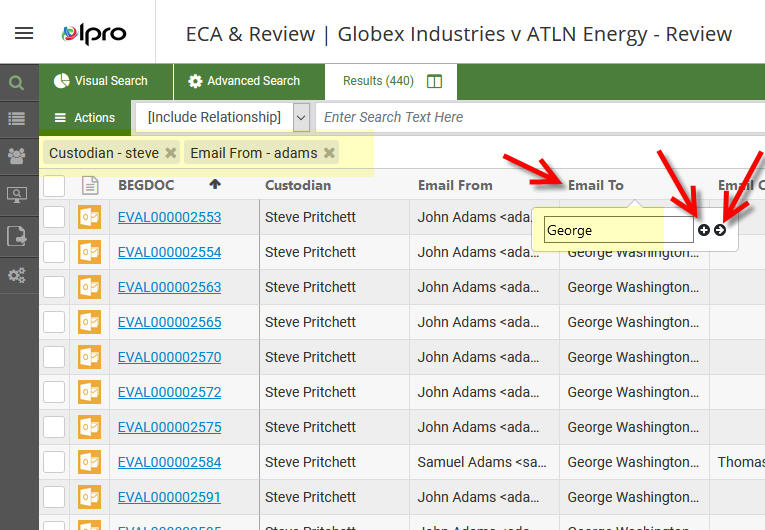
In the screen shot examples, we are looking for all the documents from Adams to George contained in the collection we received from Steve. We could spend the time to build an Advanced (Boolean) search, box by box. OR, we could use this handy Filter tool. The first screenshot shows how we can click on the pull-down arrow for the Email To column, where we can click on Filter. This opens a box where we can enter what we'd like to find, in this case Washington as a recipient.
Your can see above the column headers where we've already filtered for steve as a custodian and adams as a sender. In the second screen shot, after we've clicked on Filter, we then enter George. The + and -> do slightly different things. The + will allow us to continue to find other metadata to search, but not actually conduct the search until we're finished building all the elements. The -> allows us to immediately conduct the search, based on any other filters we have already run.
Note for former Eclipse Web users: This Filter feature used to require you also add an asterisk (*) before and after any words to search. There is no longer the need to add asterisks in IFE!