This lesson describes the software interface used when it was written.
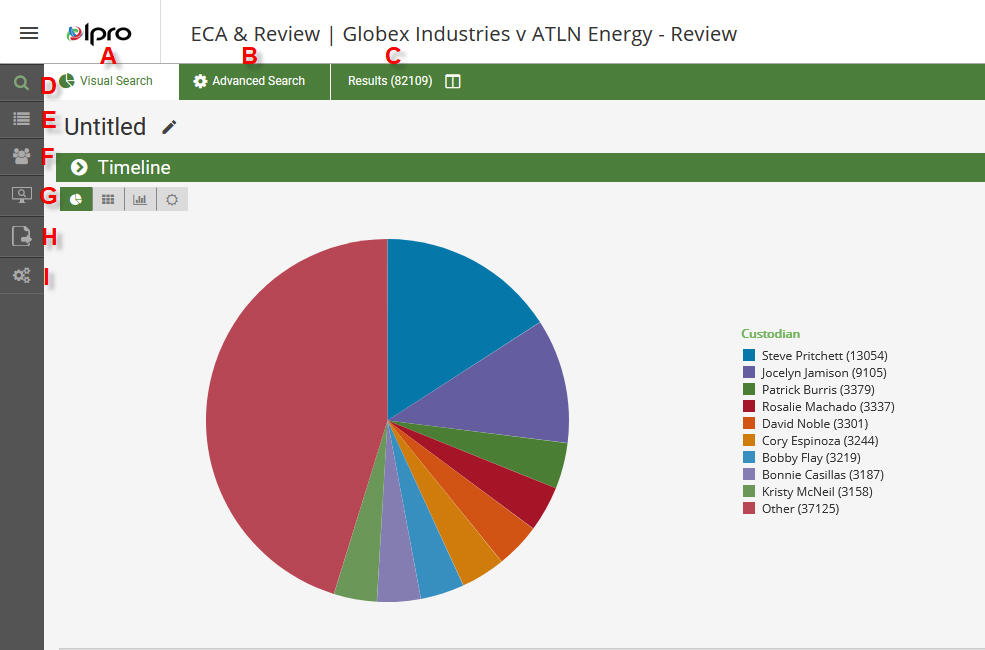
Whether you're new to Ipro for Enterprise, or you're transitioning from Eclipse Web to Enterprise, you will want to know what's where, so you can get your document review accomplished. This learning nugget will hopefully give you some visual cues to what the core parts of this initial screen contain, so you can get to what you need when you need it.
After selecting your case and choosing to enter into it, this is the upper left portion of your screen. (A) Visual Search tab is your entry screen. It displays the options to conduct a search that allows you to see database information in a visual sense. (B) Advanced Search tab will allow you to conduct a comprehensive search using the traditional Boolean-type searching, where every searching tool is available. (C) Results tab is what you will launch into if you conduct a search using (A) or (B). HOWEVER, the (C) Results tab is also the place you can go to immediately to view your documents' metadata, in a grid view. If you are conducting a document-by-document review, or simply wish to see the listing of all your documents, you will want to click on this tab after entering your case.
The left-side panel of icons lists case components you will want to access over time. You may or may not have access/rights to any given item in the list:
(D): Saved Searches: This component gives you access to both Saved Searches and Smart Folders, if there are any.
(E): Keyword Management: This component gives you access to a very valuable tool to help define lists of related search terms (words, phrases, or expressions) of particular importance to find documents containing these terms. The found terms are displayed in a field/column (and a tag list, if made available) you can make available to view while conducting document review.
(F): Review Pass Management: This component allows for management of the review pass (or batches) process.
(G): TAR Projects: This component allows for the set-up of technology assisted review, an advanced method for identifying responsive documents using AI-type technology.
(H): Export Sets: This component allows for set-up and creation of document exports for friendly parties or production sets for opposing counsel.
(I): Case Settings: This component contains a series of tabs to allow for case customization. If you have rights to acces them, there are tabs for:
- Index Management
- Relationships
- Redaction Categories
- Tag Palette
- Persistent Highlighting
- Pick Lists
- Coding Forms.